
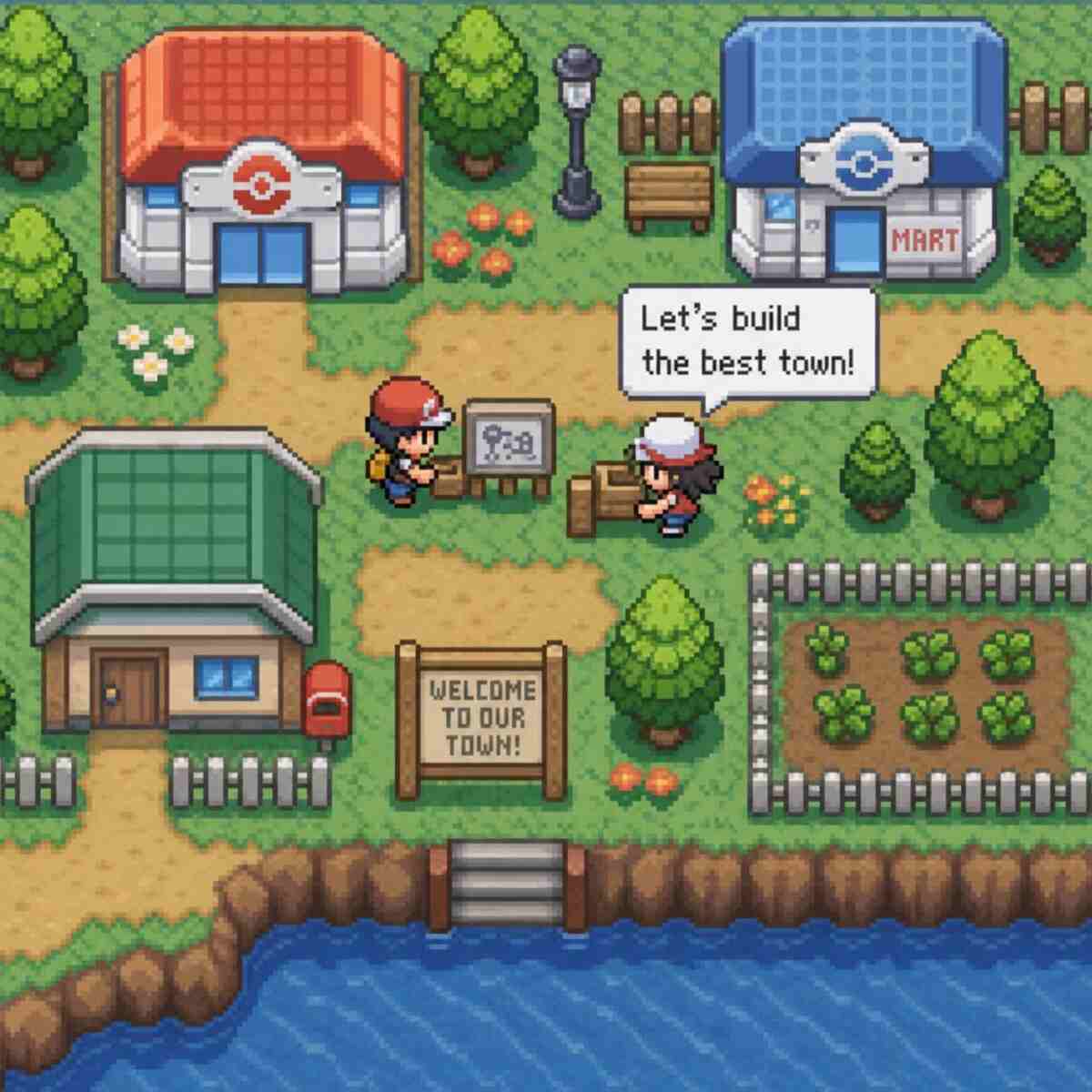

Pokémon Pokopia does support multiplayer, and it gives players several ways to share the cozy building experience. You can play with others through online multiplayer, local wireless multiplayer, Cloud Islands, and GameShare, with the main multiplayer modes supporting up to four players when everyone has the required setup. The important detail is that “local multiplayer” does not mean traditional couch co-op on one screen; it means local wireless play across multiple consoles, while GameShare can let a second player join with one copy of the game under specific conditions. Read the Best info about putrawin78c.site.
Is Pokopia multiplayer?
Yes, Pokopia is multiplayer. More specifically, Pokémon Pokopia supports online and local wireless play, and Nintendo’s official materials describe up to four people playing together in both modes. If you arrived here by searching “is pokopia multiplayer” or “is pokemon pokopia multiplayer,” the short answer is yes—but the best mode for you depends on whether your friends own the game, whether they are nearby, and whether you want to visit towns, build together in Palette Town, or use a Cloud Island. (nintendo.com)
The game’s multiplayer is built around visiting, building, hanging out, and sharing spaces rather than jumping into a competitive battle lobby. That fits the tone of Pokémon Pokopia: it is a relaxing life simulation about crafting, creating, restoring a withered world, and building towns with Pokémon. Nintendo describes the game as focused on crafting, creating, and building, with players able to visit friends and take photos of creations together. (nintendo.com)
Here is the practical verdict:
- Online multiplayer: Yes. Online Connection and Cloud Islands allow online play, and online features require the relevant online setup.
- Local wireless multiplayer: Yes. Local Connection supports multiple consoles nearby, with up to four players when each player has the needed console and copy.
- GameShare: Yes. A Nintendo Switch 2 system can initiate GameShare so someone without the game can join during the session, with nearby GameShare and GameShare via GameChat available for up to two players.
- Same-screen couch co-op: Not listed as a standard multiplayer type in Nintendo’s official multiplayer instructions. The official local option is local wireless across multiple consoles, not two controllers on one console.
The main multiplayer modes explained
Pokémon Pokopia’s multiplayer is easiest to understand if you separate the modes by what they are trying to do. Standard Link Play lets you visit another player’s town or invite friends into yours. Cloud Islands create a shared online space that can exist separately from a normal town. GameShare is a special option for playing with someone who does not own the game, but it has a smaller player limit and is session-based.
Online Connection is the standard remote multiplayer option
Online Connection is the mode to look at when your friends are not in the same room. Nintendo’s support page describes Online Connection as online play with multiple games and consoles, up to four players. The host starts a session from Link Play, chooses Online Connection, sets the player count up to four, and shares a Link Code with the friends they want to invite.
This is the closest fit for a typical “let’s play together tonight” arrangement. Each player needs their own setup, the host controls the session, and guests enter the Link Code to visit. Online play is also subject to the usual online requirements, including having the software updated and, for online features, a Nintendo Switch Online membership.
Online Connection works best when everyone has their own copy and wants a straightforward way to visit, build where allowed, interact with Pokémon, and spend time in the host’s space. It is not framed as a full shared campaign where everyone earns identical story progress. Nintendo’s support information notes that challenge progress and rewards go to the host in normal town visits, which matters if your group is planning a long-term co-op routine.
Local Connection is nearby play across multiple consoles
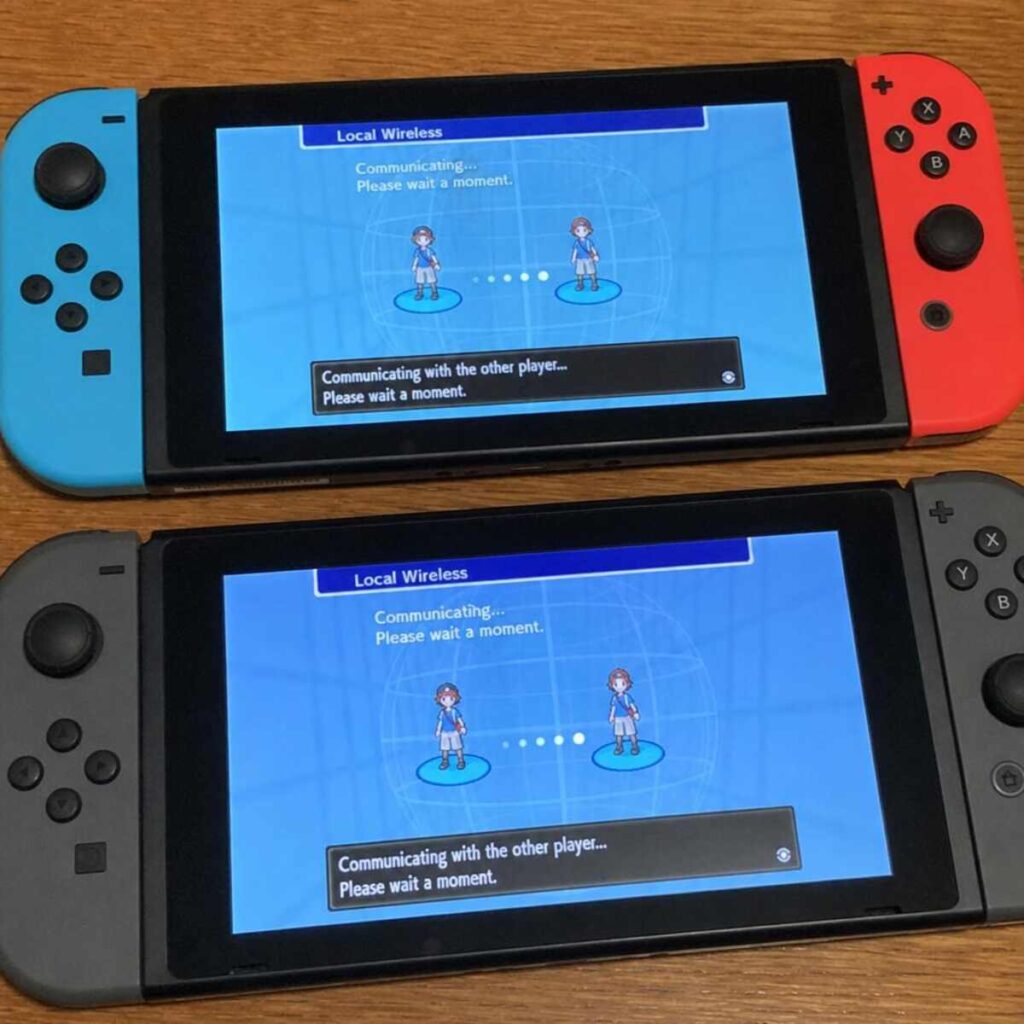
Local Connection is the answer for players asking “is Pokopia local multiplayer,” but the wording matters. Pokémon Pokopia has local wireless multiplayer but no documented one-console split-screen mode. Nintendo describes Local Connection as local wireless play with multiple games and consoles, up to four players, and the store page notes that local wireless multiplayer requires one console and one copy of the software per player.
In practice, this means a group in the same room can play together without sharing the same TV screen, as long as each person has the required hardware and a copy of the game. It is useful for families with multiple systems, friends meeting up in person, or players who prefer local wireless stability over online matchmaking. The flow is similar to online play: the host opens Link Play from a PC, chooses Local Connection, and nearby players select the host’s destination.
Local wireless play is ideal for relaxed building sessions where everyone can talk in the same room while working on a town. It is less ideal if your expectation is classic couch co-op with two controllers on one console. Based on the official multiplayer instructions, “local” in Pokémon Pokopia should be read as local wireless.
Cloud Islands are shared online spaces
Cloud Islands is one of the more interesting multiplayer features because it is designed for online building with others. Nintendo’s support page says players can create or visit a Cloud Island to play and build together online, and that players with the address and, if required, the Link Code can play on the island even when the owner is not around.
That changes the feel of multiplayer. Instead of only entering a host’s normal town while the host is actively running a session, a Cloud Island can become a shared project space. The owner controls important settings, such as whether others can play on the island, whether Virtual Mode is enabled, whether a Link Code is required, and whether that code can be saved by returning visitors.
Cloud Islands also use some separate systems. Nintendo notes that each Cloud Island has its own bag, shared Pokédex, and shared challenges and rewards from the PC. That makes them a better fit for groups that want a distinct collaborative area rather than bringing everything from a personal town into a friend’s world.
GameShare helps when one person does not own the game
GameShare is the mode used to determine whether only one person owns Pokémon Pokopia. Nintendo’s store page says you can invite visitors who do not have the game by using GameShare, and Nintendo’s support instructions describe both nearby GameShare and GameShare via GameChat. In these GameShare scenarios, the session supports up to two players, not the four-player limit used by the standard local and online modes.
GameShare has specific boundaries. A Nintendo Switch 2 system must initiate the GameShare session, and users receiving shared software can only play during that session. The shared game is not playable after the session ends. For GameShare via GameChat, Nintendo lists GameChat, internet access, a Nintendo Switch Online membership, and Nintendo Accounts as part of the online-feature requirements.
This is a helpful option for trying the game together or sharing a build session with one friend, especially if they have not bought the game. It is not the same as permanently giving them access, and it is not the best fit for a four-person group. Think of it as a flexible guest pass for a limited session rather than the full multiplayer setup.
Is Pokopia local multiplayer?
Yes, Pokopia is local multiplayer if you mean local wireless multiplayer across nearby consoles. It is not officially presented as same-console split-screen or one-TV couch co-op; Nintendo’s multiplayer instructions list Local Connection as local wireless play with multiple games and consoles, while Nintendo’s store information says local wireless multiplayer requires one console and one copy of the software per player. Players asking “is pokopia local multiplayer” should plan around separate consoles, not two players sharing one controller setup on the same system.
That distinction saves a lot of frustration. In gaming conversations, “local multiplayer” can mean several things: split-screen, same-screen couch co-op, LAN-style play, or local wireless handheld play. For Pokémon Pokopia, the official language points to local wireless. A nearby friend can join, but the standard local mode is still built around multiple consoles. (en-americas-support.nintendo.com)
GameShare adds a second local-adjacent option. With GameShare nearby, a host on Nintendo Switch 2 can invite a second player to join, even if the guest does not own the game, and Nintendo says the guest can be on either Nintendo Switch 2 or Nintendo Switch. That is useful for households with one copy of the game and two systems, but it is still a two-player session and not a same-screen couch co-op replacement.
Use this simple decision guide:
- You have one console and want two players on one screen: Pokémon Pokopia’s official multiplayer information does not list this as a supported mode.
- You have multiple nearby consoles and each player owns the game: Use Local Connection for local wireless play up to four players.
- You have one game copy and want one nearby guest: Use nearby GameShare with a Nintendo Switch 2 console to initiate the session. (en-americas-support.nintendo.com)
- You want to play with distant friends: Use Online Connection or Cloud Island, depending on whether you want a visit session or a shared online build space.
How multiplayer works once you are in a session
Multiplayer in Pokémon Pokopia is about visiting and collaborating, but permissions differ depending on where you are and which mode you use. In normal town visits, Nintendo says players can visit another player’s towns or invite others into theirs. Visiting players can help build in Palette Town, but they cannot take items home from There; outside Palette Town, visitors cannot affect terrain, though they can still interact with Pokémon and habitats.
That makes the host’s town feel protected while still allowing social play. The host retains primary responsibility for progress, and Nintendo states that challenge progress and rewards go to the host player during these visits. Visitors are not completely passive, though; they can interact with Pokémon and habitats, and they can order items from the PC Shop to receive after returning to their own town.
This structure is common in cozy multiplayer games because it reduces chaos. If every visitor could freely reshape any terrain, bring resources in and out without limits, or alter progression, a host’s world could quickly become hard to manage. Pokémon Pokopia’s rules encourage friends to enjoy a town together while keeping ownership and long-term progress clearer.
Palette Town is the most collaborative normal-town space
Palette Town is especially important because it is where some of the most collaborative building takes place. Nintendo’s support information says that when using Link Play in Palette Town, visiting players can help build the area. GameShare sessions also take place in Palette Town, where the host can invite a second player and build together, though the guest may be limited in how they interact with some things.
You should think of Palette Town as the best place to showcase creativity, host a friend, and collaborate on a shared layout. If your main multiplayer plan is decorating, experimenting, or having a relaxed housewarming-style session, Palette Town is likely where you will spend much of that time. Nintendo’s store page even frames multiplayer around inviting Pokémon or other players to visit after you build a home.
The trade-off is that Palette Town is not immediately available as a full multiplayer hub with every feature. Nintendo says Link Play access takes about 30 minutes of gameplay and requires raising the Environment Level to 2, while GameShare in Palette Town requires additional progress to reach that area.
Cloud Islands are better for ongoing group projects
Cloud Islands solve a different problem: what if your group wants a shared online project that is not simply one person’s normal town visit? A Cloud Island can be created with settings that decide who can play, whether a Link Code is needed, and whether Virtual Mode is enabled for viewing without making changes. Nintendo also notes that players with the island address and required Link Code can play even if the owner is not around.
That makes Cloud Islands practical for groups with uneven schedules. One player can create the island, share the address and code, and friends can contribute when they have time. Because the island uses a separate bag and a shared Cloud Island Pokédex, it behaves more like a dedicated collaborative zone than a simple visit to someone’s personal town.
There are still roles and responsibilities. Nintendo identifies the owner as the player who created the Cloud Island and says the owner can manage settings and remove other players. The host is the player currently hosting the active session when the owner is absent or another player is present, and the host can also manage certain session actions.
Requirements to check before inviting friends
Before planning a multiplayer session, make sure everyone understands the hardware, game-copy, account, and progress requirements. Pokémon Pokopia’s multiplayer can be simple once it is unlocked, but the wrong assumption—especially about couch co-op or GameShare—can derail a play session. A quick pre-check is worth doing before everyone sits down to play.
Use this checklist:
- Confirm the mode. Choose Online Connection, Local Connection, Cloud Island, or GameShare before inviting people.
- Check player count. Standard online and local wireless modes support up to four players, while GameShare sessions are for up to two players.
- Update the game. Nintendo says updates are required for the game’s internet features, and all players need the same software version to play together.
- Plan for online requirements. Online features require internet access and a Nintendo Switch Online membership.
- Unlock Link Play. Nintendo says it takes about 30 minutes of play time to access Link Play from the PC at a Pokémon Center, and you need Environment Level 2.
- Progress further for some options. GameShare in Palette Town requires reaching Palette Town, and Nintendo’s support instructions explain that reaching it for the first time involves completing a habitat to attract Hitmonchan and completing its request to learn Rock Smash.
- Understand guest limits. Visitors may be restricted in how they affect terrain, take items home, or receive progress depending on the mode and location.
These requirements do not make multiplayer complicated, but they do make it more structured than simply pressing “join” from the title screen. For the smoothest first session, each player should update their software, unlock Link Play, and decide whether the session is meant for a quick visit, serious building, or Cloud Island collaboration.
How do you start multiplayer in Pokopia?
You start multiplayer through Link Play, which becomes available from the PC at a Pokémon Center after early-game progress. For standard local or online sessions, the host opens Link Play, chooses whether to invite others, selects Local Connection or Online Connection, adjusts settings such as player count and Link Code visibility, and starts the session. Guests then use Link Play to visit a friend, choose the matching connection type, and enter or select the destination as needed.
The exact steps depend on the mode, but the overall pattern is consistent: host creates access, guests join using local discovery, Link Codes, addresses, or GameShare invitations. It is a good idea for the host to decide the town or island first, because multiplayer permissions and activities change depending on where the group plays. For example, normal town visits, Palette Town sessions, Cloud Islands, and GameShare all come with different expectations.
For a standard online or local session, the flow looks like this:
- Progress far enough to unlock Link Play. Nintendo says you need about 30 minutes of play time and Environment Level 2 to access Link Play from the Pokémon Center PC.
- Go to the town where you want to host. Some towns may require you to build a home before quick travel is available.
- Open the PC and choose Link Play. First-time users will see important notes about playing with others.
- Choose Invite Others to Visit. Then select Local Connection or Online Connection depending on your group.
- Adjust session settings. The host can set the number of players up to four, choose Link Code display options, and choose whether to use Spectator Mode.
- Share the needed access information. Online guests need the Link Code; local guests select the nearby destination and enter a code if the host set one.
- End the session properly. The host can close the connection from Link Play, and online sessions can also be ended from the Pokédex menu.
For Cloud Islands, the host or owner shares the island address and any required Link Code. A guest selects Play on a Cloud Island from Link Play, searches for a new Cloud Island or chooses a previously visited one, enters the Link Code if needed, and confirms the destination.
For GameShare, the host needs a Nintendo Switch 2 console with Pokémon Pokopia and must start the GameShare session from Palette Town. Nearby guests join from the GameShare icon on the HOME Menu, while GameShare via GameChat uses a GameChat invitation path. In both cases, the guest can play during the active session but does not keep access to the shared software afterwards.
Choosing the best multiplayer mode for your group
The best Pokémon Pokopia multiplayer mode depends less on what is “strongest” and more on what your group is trying to do. A couple sharing one copy of a game has different needs from four friends, each of whom owns a copy. A group building slowly over several weeks will probably prefer Cloud Island, while a one-night visit to admire someone’s town may be easier through Online Connection.
Best for friends who all own the game
If everyone has the game and their own compatible setup, use Online Connection for remote play or Local Connection for nearby wireless play. These are the cleanest options for up to four players. They also avoid the two-player limit and session-sharing restrictions that come with GameShare.
This setup is especially good for players who expect to meet regularly. Everyone can develop their own town between sessions, then visit one another when it is time to share progress. Just remember that rewards and challenge progress in town visits go to the host, so groups that want equal shared advancement may want to rotate hosts or focus on Cloud Islands.
Best for one owner and one guest
If one player owns Pokémon Pokopia and another person wants to join without owning it, GameShare is the mode to examine. It supports a second player through nearby GameShare or GameShare via GameChat, and Nintendo’s store page says visitors who do not have the game can be invited through GameShare. The host must initiate the session on Nintendo Switch 2, and the guest has access only during the session.
This makes GameShare great for trying the game, sharing a cozy evening, or letting a friend help with a specific Palette Town project. It is less suited to groups that want four-player sessions, permanent guest access, or equal ownership of a shared save. If the guest becomes a regular player, buying their own copy may make standard online or local wireless sessions easier.
Best for ongoing shared building
Cloud Island is the strongest fit for ongoing group creativity. Because players with the island address and Link Code can play even when the owner is not around, it works well for friends in different time zones or households with different play schedules. The separate bag, shared Cloud Island Pokédex, and shared challenges also make the island feel like its own project.
If your group loves long-term planning, assign roles. One player might focus on layout, another on habitats, another on decoration, and another on completing shared Pokédex entries. The game does not require that level of organization, but a little structure helps prevent everyone from working at cross-purposes in the same space.
Best for families in the same home
Families should first count consoles and copies. If multiple players each have a console and copy, local wireless is the straightforward choice for up to four players. If there is only one game copy but two systems are available, nearby GameShare may work for a two-player session, with the Nintendo Switch 2 system initiating the share.
The main warning is couch co-op expectations. If the plan is two people sitting on the same sofa using the same console and same screen, Nintendo’s official multiplayer descriptions do not list that as the local mode. Local wireless and GameShare still require multiple systems in the scenarios Nintendo describes.
What visitors can and cannot do
Visitor permissions are one of the biggest things to understand before hosting. In normal town visits, the host’s world remains the central save, and the host receives progress and rewards for challenges. Visitors can still interact, order items from the PC Shop, and participate socially, but they should not expect every action to carry back to their own town.
In Palette Town, visitors have more room to contribute because Nintendo specifically says visiting players can help build there. In other towns, visitors cannot affect the terrain, though they can interact with Pokémon and habitats. That division gives groups a natural way to plan sessions: use Palette Town for creative building with friends, and use other towns more for touring, socializing, and Pokémon interactions.
GameShare guests have their own limitations. Nintendo’s support page says a guest player in GameShare has access to the same moves as the host but may be limited in how they interact with certain elements. That means GameShare can still be fun and useful, but it should not be treated as identical to a full second copy joining a standard multiplayer session. (en-americas-support.nintendo.com)
Cloud Islands follow a different logic. Everyone uses a separate Cloud Island bag, the island has its own shared Pokédex, and challenges and rewards from the PC are shared among players on that island. Those rules make Cloud Islands feel more collaborative and less like borrowing the host’s personal progress space.
Practical tips for a smoother multiplayer session
Pokémon Pokopia is designed to be relaxed, but multiplayer always benefits from a little planning. Most problems come from mismatched expectations: one player thinks they are joining a full shared campaign, another expects couch co-op, and another has not unlocked Link Play yet. Set expectations early and the session will feel much more natural.
Try these practical tips:
- Start with a short test session. Before planning a big building night, have everyone connect, visit, leave, and reconnect once.
- Rotate hosts for town visits. Since normal town challenge progress and rewards go to the host, rotating hosts helps everyone show off and benefit.
- Use Palette Town for hands-on building. Visitors can help build in Palette Town, making it the better choice for collaborative design sessions.
- Use Cloud Island for long-term teamwork. A Cloud Island can remain accessible to players using the address and required Link Code, even when the owner is away.
- Agree on building rules. Decide whether friends can freely place items, reshape areas, or focus on certain zones.
- Keep Link Codes private when needed. If you only want specific friends joining, use codes thoughtfully and avoid sharing them in public spaces.
- Update before the session starts. All players should be on the same software version, and internet features require the needed update.
- Bring the right expectation to GameShare. It is a temporary session-sharing feature, not a permanent copy of the game for the guest.
A good multiplayer session in Pokémon Pokopia should feel like inviting friends into a creative space, not managing a technical checklist. Once the requirements are handled, the real fun is deciding what to build, which Pokémon to welcome, and how your shared spaces should feel.
Multiplayer fits Pokopia’s cozy design
Pokémon Pokopia is not trying to be a traditional mainline Pokémon multiplayer experience. Its multiplayer makes more sense when viewed through the lens of a life simulation: visit, decorate, build, take photos, interact with Pokémon, and slowly improve a world. Nintendo’s official description emphasizes crafting cozy towns, restoring the world, learning moves such as Leafage, Rock Smash, and Surf, and using crafting and furniture to personalize spaces.
That gives multiplayer a social rhythm. One player might invite friends to see a newly built area, another might open a Cloud Island for a weekend project, and another might use GameShare so a curious friend can help in Palette Town. The modes are not identical, but they all support the same broad fantasy: making a Pokémon-filled place and letting other people experience it with you.
The key is choosing the right mode before you start. Standard online or local wireless multiplayer is best for groups where everyone has the game. GameShare is best for one owner and one guest. Cloud Island is best for a shared online project that can continue beyond a single host’s active session. (en-americas-support.nintendo.com)
Final takeaway
So, is Pokopia multiplayer? Yes: Pokémon Pokopia supports both online multiplayer and local wireless multiplayer, with up to four players in the standard online and local wireless modes. It also supports GameShare for two-player sessions when one guest does not own the game, as well as Cloud Islands for shared online building. (nintendo.com)
The only major expectation to correct is local play. If by “local multiplayer” you mean nearby wireless play on multiple consoles, Pokémon Pokopia has it. If you mean classic couch co-op on one console and one screen, that is not how Nintendo’s official multiplayer options are described. (en-americas-support.nintendo.com)
For most players, the best approach is simple: unlock Link Play, update the game, choose the mode that matches your group, and decide what kind of session you want before inviting friends. Once that is done, Pokopia’s multiplayer becomes what it should be—a friendly way to build, visit, and enjoy a cozy Pokémon world together.
