
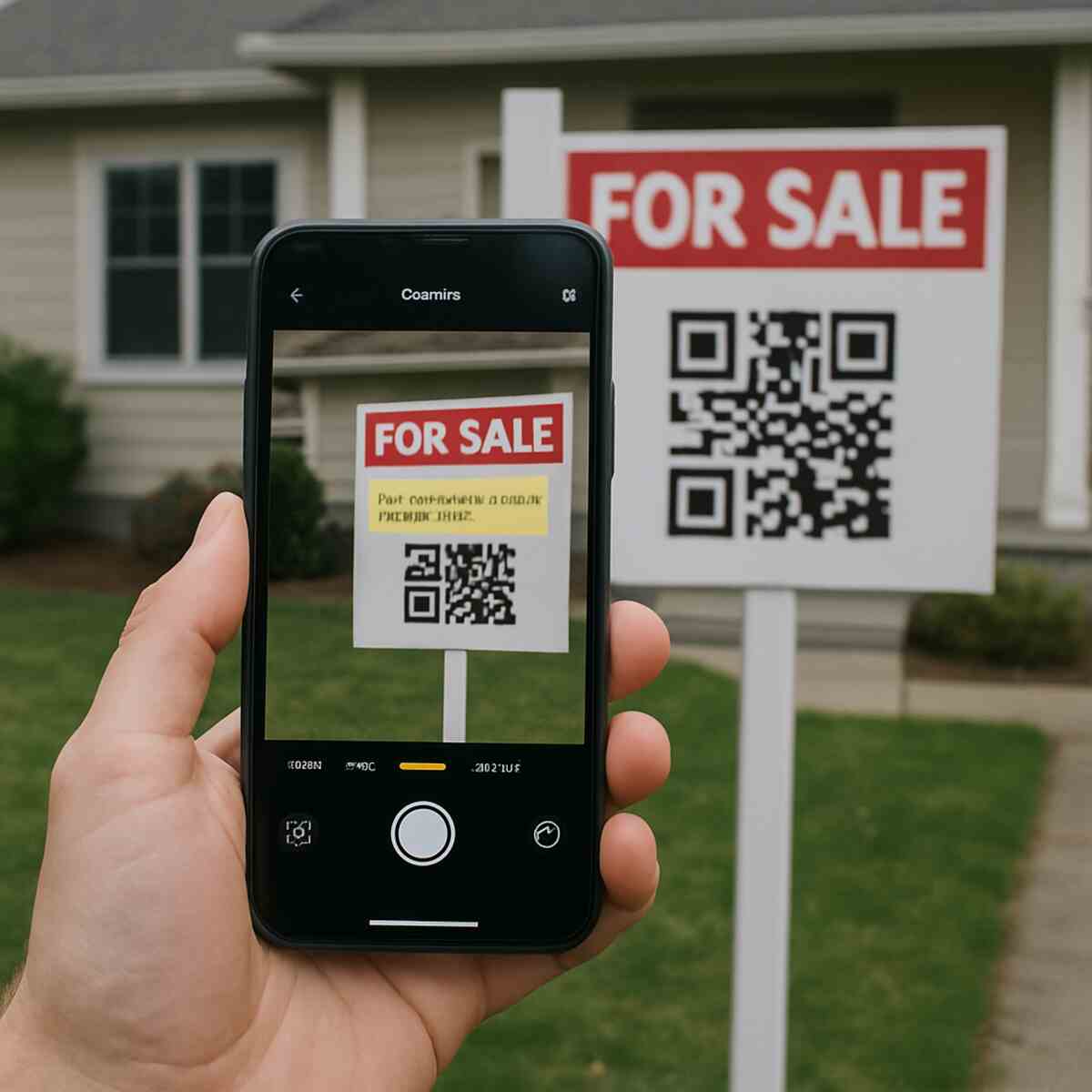

You’ve probably scanned them for restaurant menus or to join a waitlist, but did you know you can create your own QR code for free in less than a minute? Those black-and-white squares aren’t just for big companies anymore; they have become a simple, powerful tool for everyone, from small business owners to someone just wanting to easily share their Wi-Fi password. What do you consider about code generator qr.
A QR code is essentially a physical hyperlink. Just as you click a link on a website to visit a new page, you scan a code with your phone to connect the physical world to a digital destination. This simple scan instantly bridges the gap between a flyer in your hand and the event’s ticket page online.
The name itself gives away the primary benefit. “QR” stands for Quick Response, as scanning one is dramatically faster than typing a long, complicated web address from a poster into your phone. In practice, they store information that your camera can read in a split second, saving you time and eliminating the frustration of typos.
The Most Important Choice: “Permanent” Static vs. “Editable” Dynamic QR Codes
Before you generate your first QR code, there’s one crucial choice that will determine what you can do with it later on. Not all QR codes are created equal; some are permanent, while others are editable. Understanding this difference is the key to creating a code that works for you long-term.
A Static QR Code is like writing in permanent ink. The data—like a website link—is locked directly into the pattern. If the link changes or breaks, you have to create and print a brand-new QR code. It’s simple, direct, and works forever as long as the destination doesn’t change.
An editable QR Code, officially called a Dynamic QR Code, is like writing in pencil. The code itself points to a special, short link that you can change anytime. This means if your menu updates or your promotion ends, you can simply log into your QR code generator and change where the code sends people—without ever reprinting the code itself.
So, which one is right for you?
- Static QR Code: Best for permanent information. Think of a code that shares your Wi-Fi password, your email address, or a link to your business’s homepage.
- Dynamic QR Code: Perfect for information that might change. Use this for restaurant menus, event details, weekly flyers, or special promotions. As a bonus, most services for dynamic codes also let you see how many people have scanned your code.
How to Instantly Share Your Wi-Fi Without Saying a Word
Beyond just linking to websites, one of the most popular and practical uses for a QR code is sharing your Wi-Fi network. We’ve all been there: slowly spelling out a complicated password for a guest, only for it to fail because of a typo. A QR code completely solves this problem, making it one of the best examples of a “set it and forget it” Static QR code.
The process is incredibly straightforward. When you use a QR code generator, you’ll see an option for “Wi-Fi.” Instead of a website link, you’ll enter your network name (the SSID) and your password. The generator then embeds this information into the code. When a guest scans it with their phone’s camera, they won’t be taken to a website. Instead, a prompt will appear asking if they want to join the network, with the password already filled in. One tap, and they’re connected.
This simple trick is perfect for making life easier for guests at home, but it also adds a professional touch to any small business, like a café, barbershop, or shared office space. You can share your guest Wi-Fi with a QR code placed on a table or counter, eliminating the hassle for everyone. This idea of instantly sharing complex information isn’t just for Wi-Fi—it’s also a game-changer for your personal or professional identity.
Upgrade Your Business Card: How a vCard QR Code Gets You More Contacts
That same principle of instantly sharing complex information works wonders for your professional identity. Think about what happens after you hand someone a traditional business card—they either have to manually type your name, email, and phone number into their phone, or the card gets lost in a wallet. A special type of QR code, often called a vCard QR code for business cards, completely modernizes this exchange and ensures your details get saved.
Instead of sending someone to a website, scanning a vCard QR code prompts their phone to instantly open a new contact entry with all your information pre-filled: your name, phone number, email address, and even your company name. All they have to do is tap “Save.” This is far more effective than a simple link to your website, as it removes the extra steps and friction that often prevent people from saving your details on the spot. When you create a QR code for your contact information, you make it effortless for people to keep in touch.
Ultimately, adding a business card QR code does more than just share information; it makes your physical card interactive and leaves a lasting impression. It shows that you’re tech-savvy and considerate of the other person’s time. This small addition significantly increases the chances that you’ll end up in their phone’s address book, which is the entire goal.
How to Create Your First QR Code in 4 Simple Steps
You don’t need any special software or technical skills to make QR codes. The process is surprisingly simple, and dozens of free online tools can get the job done right in your web browser. While the layouts of these websites may differ, the core steps are nearly identical everywhere. Once you understand this basic workflow, you’ll know how to create a QR code for a website, a contact card, or your Wi-Fi network in under a minute.
Nearly every free tool to make QR codes follows this universal, four-step recipe:
- Choose Your Content Type. The generator will first ask you what you want the code to do. You’ll see options like “URL/Website,” “vCard,” “Text,” or “Wi-Fi.” The most common choice is “URL,” which simply directs people to a link.
- Enter Your Information. A field will appear for you to input your data. If you chose “URL,” this is where you’ll paste the website link you want to share. If you chose “vCard,” you’ll see fields for your name, phone, and email.
- Customize Your Design (Optional). Many tools let you change the QR code’s color or add a logo to the middle. This is a nice touch for branding but isn’t necessary for the code to work perfectly.
- Download Your Code. Once you’re happy, hit the download button. You’ll receive an image file (usually a PNG) that you can immediately add to a flyer, poster, or email signature.
Beyond Black and White: How to Create a Custom QR Code With a Logo
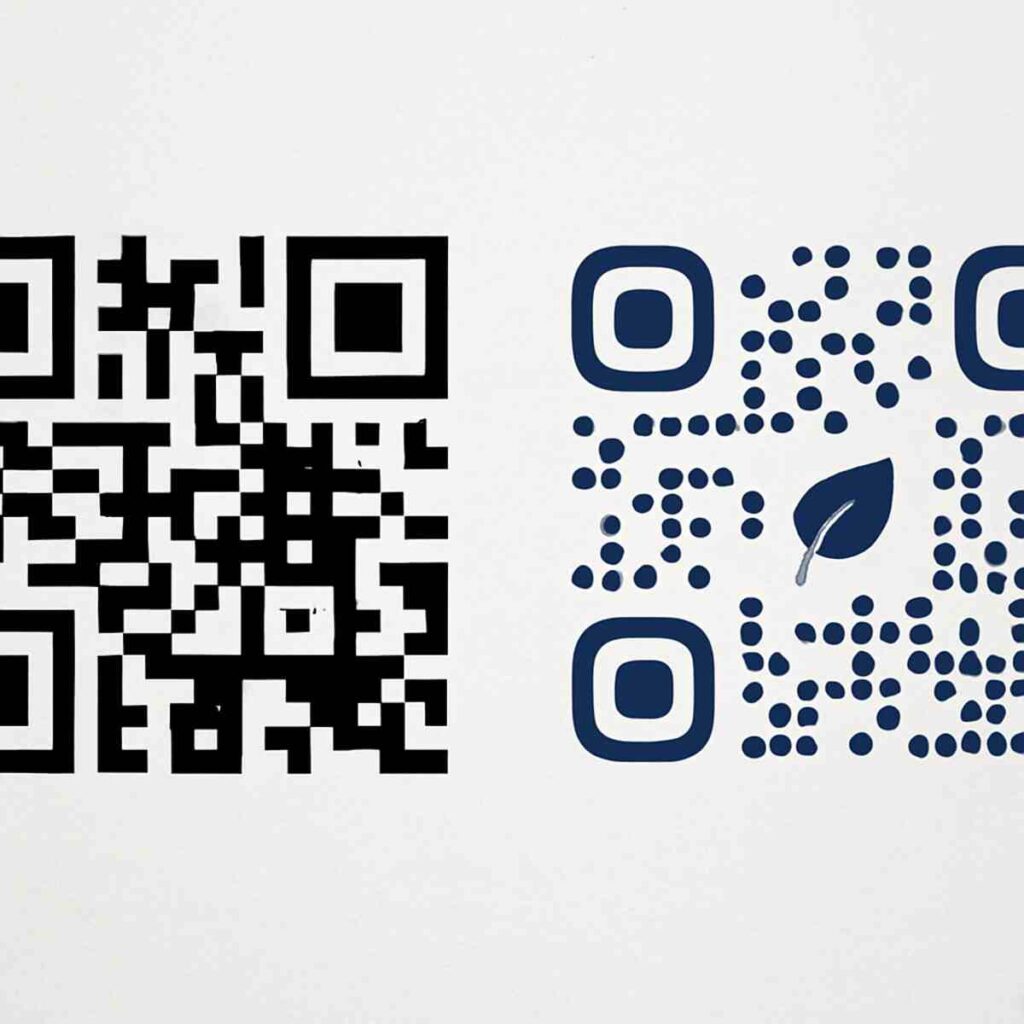
A standard black-and-white QR code gets the job done, but a branded QR code can make a much better impression. Most generators allow for simple QR code design and customization, letting you change the color of the dots and squares to match your brand, event theme, or personal style. As you can see in the example, even a simple change from black to a brand-specific color can make your code look more professional and inviting.
You might be wondering how you can place a logo right in the center without breaking the code. The secret is a feature called error correction. Think of it like a safety net; QR codes are designed with extra, backup information built right in. This means a small portion of the code can be covered—by your logo, for instance—and phones can still read it perfectly. This clever design is what makes it possible to create a custom QR code with a logo that is both stylish and functional.
Before you get too creative, remember the most important rule: contrast is king. For a QR code to be scannable, your phone’s camera needs to see a clear difference between the dark elements and the light background. A dark code (like navy, forest green, or black) on a light background (like white or pale yellow) is always a safe bet. Avoid light colors like yellow on white, or dark-on-dark combinations, as these will often fail to scan and frustrate your users.
The Power of Dynamic Codes: How to Track QR Code Scans and Analytics
One of the most powerful features of dynamic QR codes goes beyond just being editable. Imagine you’ve placed a QR code on a flyer for your community event or on your product packaging. How do you know if anyone is actually scanning it? With dynamic QR code tracking, you don’t have to guess.
Most QR code generators with dynamic options offer a simple dashboard where you can track QR code scans and analytics. This typically includes the total number of scans, when they happened (by day or week), and even a general idea of the location (like the city or country). This is the key to measuring your QR code performance and understanding how people are interacting with your materials.
This tracking magic works because a dynamic QR code doesn’t point directly to your final destination link. Instead, it points to a special, trackable web address that acts like a receptionist. When someone scans the code, they are first sent to this address, which quickly logs the scan details before instantly redirecting them to your intended website, video, or document. The user notices nothing, but you get valuable data.
This simple data is incredibly powerful. A small business owner can see which of their posters is getting the most engagement, or a musician can see how many people at a concert scanned the code for their new song. It transforms your physical marketing from a shot in the dark into a measurable campaign.
Is It Safe to Generate and Use QR Codes Online?
It’s natural to wonder about QR code security. When it comes to the question, “is it safe to generate QR codes?”, the answer is a clear yes. Reputable online generator tools are simply converting your information (like a URL) into a visual format. The QR code itself isn’t a program; it’s just data, much like plain text in a document.
The primary security risk isn’t in creating codes, but in scanning them. Think of it like phishing emails. Bad actors can create malicious QR codes that link to scam websites or prompt you to download harmful files. Instead of a suspicious-looking text link, they use a seemingly harmless QR code to trick you. This is why you should treat any QR code you scan with the same caution you’d use for a link sent by a stranger.
Thankfully, protecting yourself is straightforward. Most smartphones today show you a preview of the destination URL when you scan a code. This preview is your single most important safety check. Don’t just scan and tap!
Tips for Safe Scanning:
- Check the URL preview before opening. Does the link look legitimate and match what you expect? If you’re scanning a Coca-Cola ad, the link shouldn’t say “totally-safe-downloads.xyz.”
- Be wary of codes in unexpected public places. A random sticker on a lamppost is much riskier than one on sealed product packaging.
- Look for tampering. Check if a QR code sticker has been placed over an original one on a menu or poster. This is a classic bait-and-switch tactic.
Choosing the Best Free Tool: 3 Things to Look For
A quick search for “free QR code generator” brings up dozens of options, but they are not all created equal. While many are perfectly fine for a one-off project, some come with hidden limitations that can cause headaches later on. Before you generate, make sure the tool you choose checks these three boxes:
- Dynamic QR Code Options: Even if you only need a Static code now, a generator that offers Dynamic codes (often as a paid upgrade) is a sign of a more professional service. Having the ability to create a code you can update later is the single most valuable long-term feature.
- No Hidden Scan Limits: Some services offer “free” QR codes that stop working after a certain number of scans (say, 500) to push you into a paid plan. Imagine your flyers or business cards suddenly becoming useless! Always check the fine print for scan limits or expiration dates.
- High-Resolution Downloads (SVG & PNG): A good generator lets you download your code in different file formats. For web use, a PNG is fine. But for anything you plan to print—from a business card to a poster—you need a high resolution QR code for print. Look for an SVG option. This is a vector file that can be scaled to any size without becoming blurry, ensuring it always scans perfectly.
From PDFs to App Downloads: More Creative Ways to Use QR Codes
While linking to a website is the most common use, your QR code can point to almost any digital destination. Imagine you want to share a detailed restaurant menu, an event program, or a product manual. Instead of needing a full webpage, you can create a QR code for a PDF document directly. When someone scans it, the file opens right on their phone, giving them all the information they need in a clean, portable format.
If you have a mobile app, getting people to find it among millions of others can be a challenge. A QR code for your app download solves this instantly. A smart QR code generator can even detect if the user has an iPhone or an Android device and send them to the correct store—either Apple’s App Store or Google Play. This removes all the friction of searching, making it effortless for people to install your app with a single scan.
Getting people to your physical location has also never been easier. Rather than printing a tiny, hard-to-read map on a flyer, you can generate a QR code for a Google Maps link. When a customer or guest scans it, the Maps app on their phone will open with your address already plugged in, ready for one-tap directions. It’s an incredibly simple way to guide people to your storefront, wedding venue, or open house.
Your First QR Code Project: A Simple Plan to Get Started Today
You now have the power to create QR codes yourself, moving from being a passive user to an active creator. The most important knowledge you’ve gained is the choice between a permanent Static code and an editable Dynamic one, which is the key to unlocking their full potential.
For information that never changes, like a Wi-Fi password or a portfolio link, a Static code is your simple, set-and-forget solution. For anything that might evolve—a restaurant menu, a promotional sale, or event details—a Dynamic code gives you the freedom to edit and adapt without ever reprinting the code.
A great way to get started is with a small, immediate win. Try opening a free QR code generator, choosing the ‘URL’ type, and creating a Static code for your favorite website or video. Download the image and text it to a friend to see how easy it is.
You’ve just turned a simple link into a physical key. As you start spotting opportunities to use them, that scannable square will no longer be a mystery; it will be your personal shortcut for sharing anything with anyone, instantly.
